 User guide
User guide
User guide
Ragic AI helps users quickly get acquainted with Ragic, query data within sheets, and even create records directly from uploaded files to streamline your workflow.
Clicking the  icon in the upper-right corner of the page will start the Ragic AI.
If you don't see this feature, this may be related to your Feature Access Settings. Please contact your SYSAdmin to check whether the "Ragic AI chat" permission is enabled.
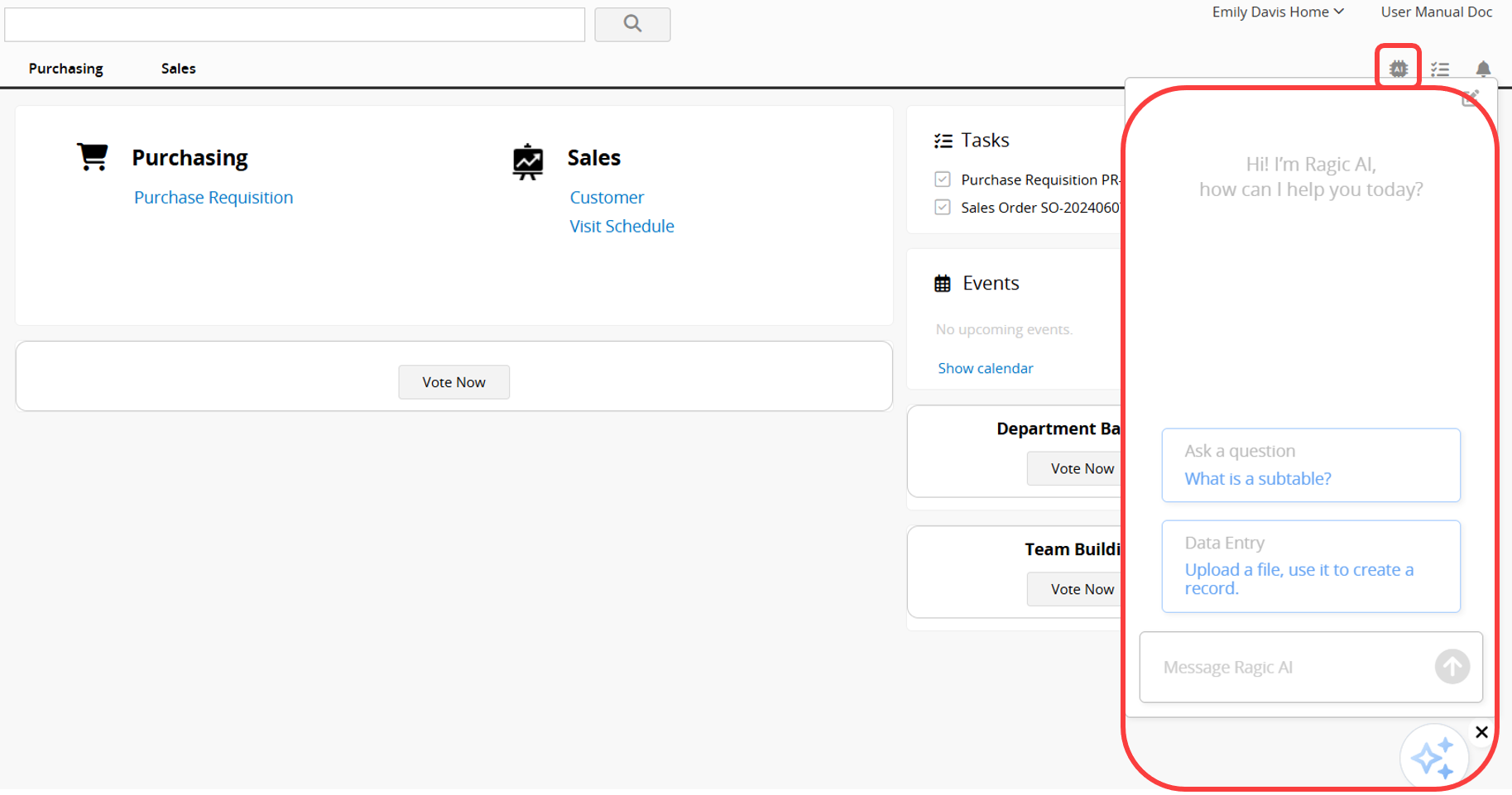
An  icon will appear in the bottom right corner. Clicking it will minimize the window and clicking it again will reopen it. You can also drag the icon to move it. To close Ragic AI, click the X in the top right corner of the icon. Click the icon again to restart Ragic AI.
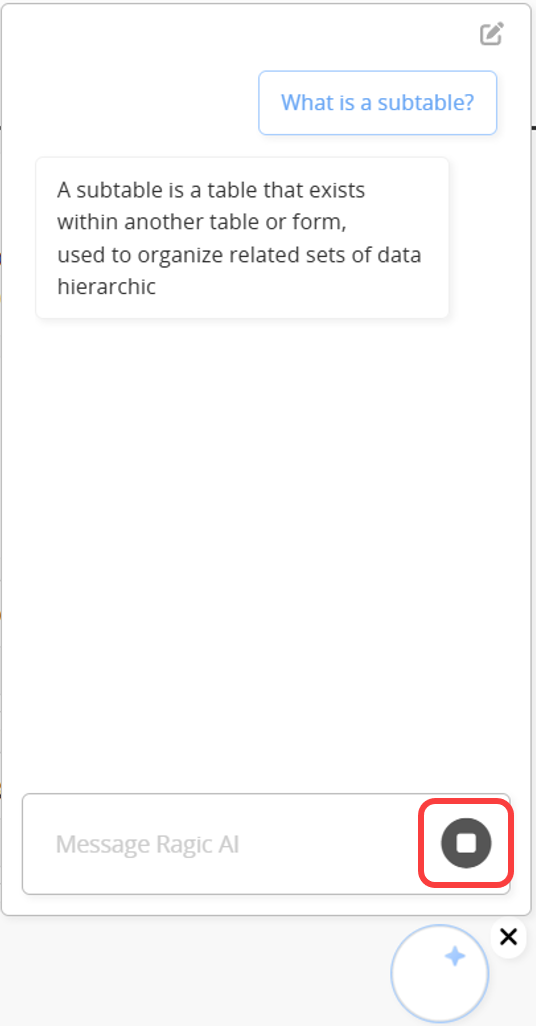
Enter your request for Ragic AI to assist with in the dialog box. To stop the response, click the Stop icon.
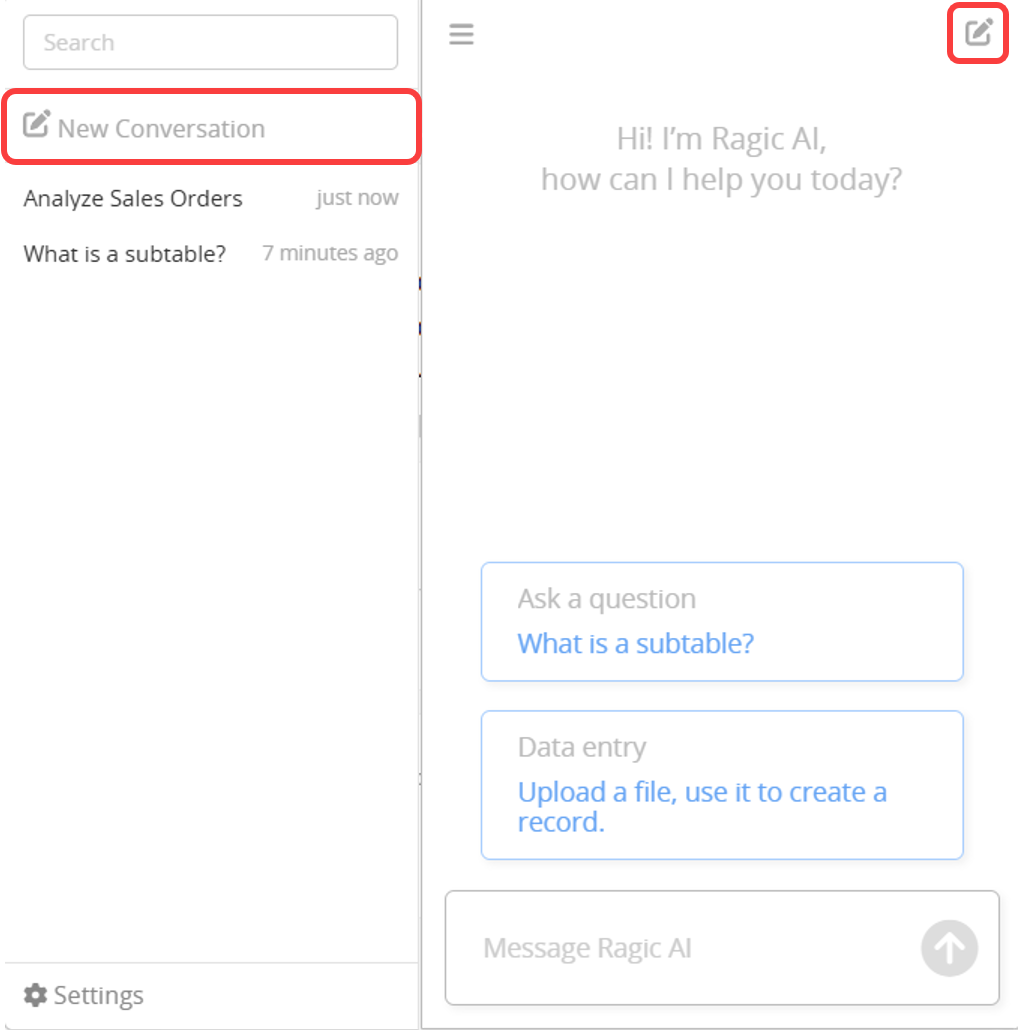
To start a new conversation, you can click the icon in the top right corner or open the menu and select New Conversation.
Note:
1. Phrase your questions precisely for more accurate responses from Ragic AI.
2. Currently, Ragic AI cannot generate reports, but you can ask it for report suggestions.
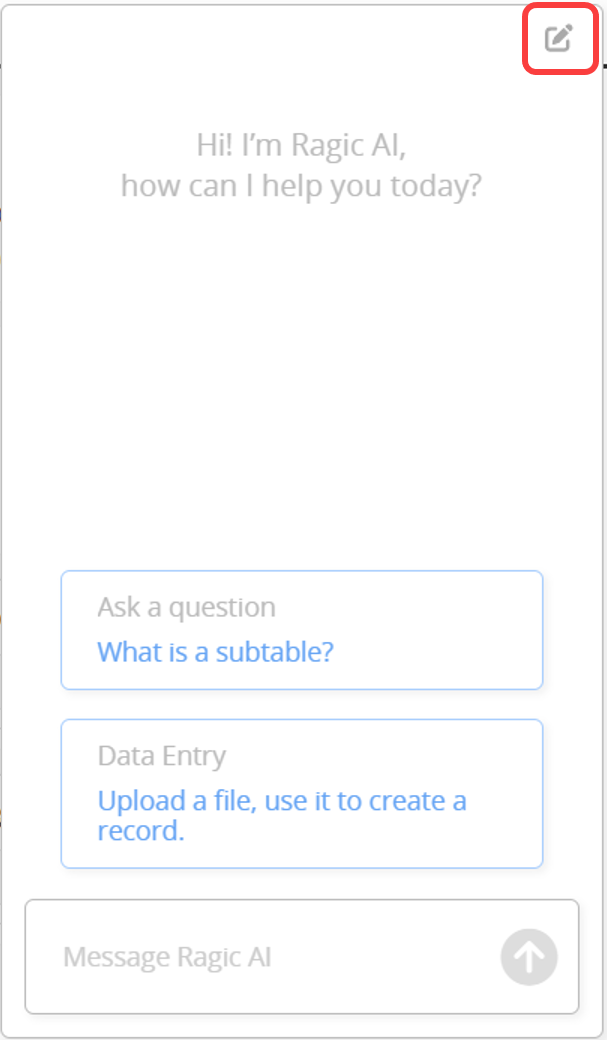
3. If the question is too complex or cannot be answered, Ragic AI may stop responding. You can reset it by clicking the icon in the upper right corner and rephrasing your question.
For related support features, please refer to the following sections:
1. Asking Questions and Querying Sheets
2. Auto-Create a Record From an Uploaded File
3. Using @ To Call AI for Automated Task Execution
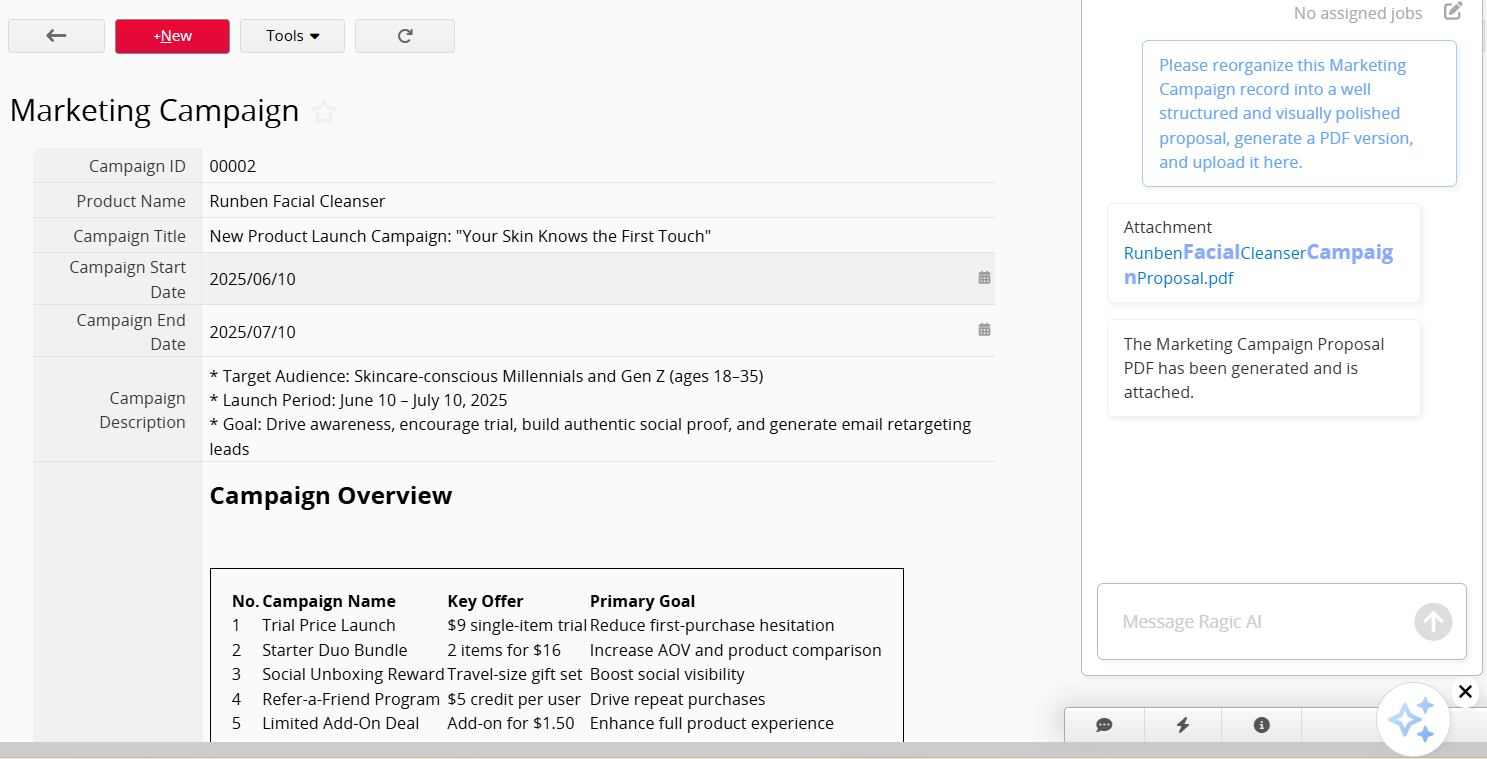
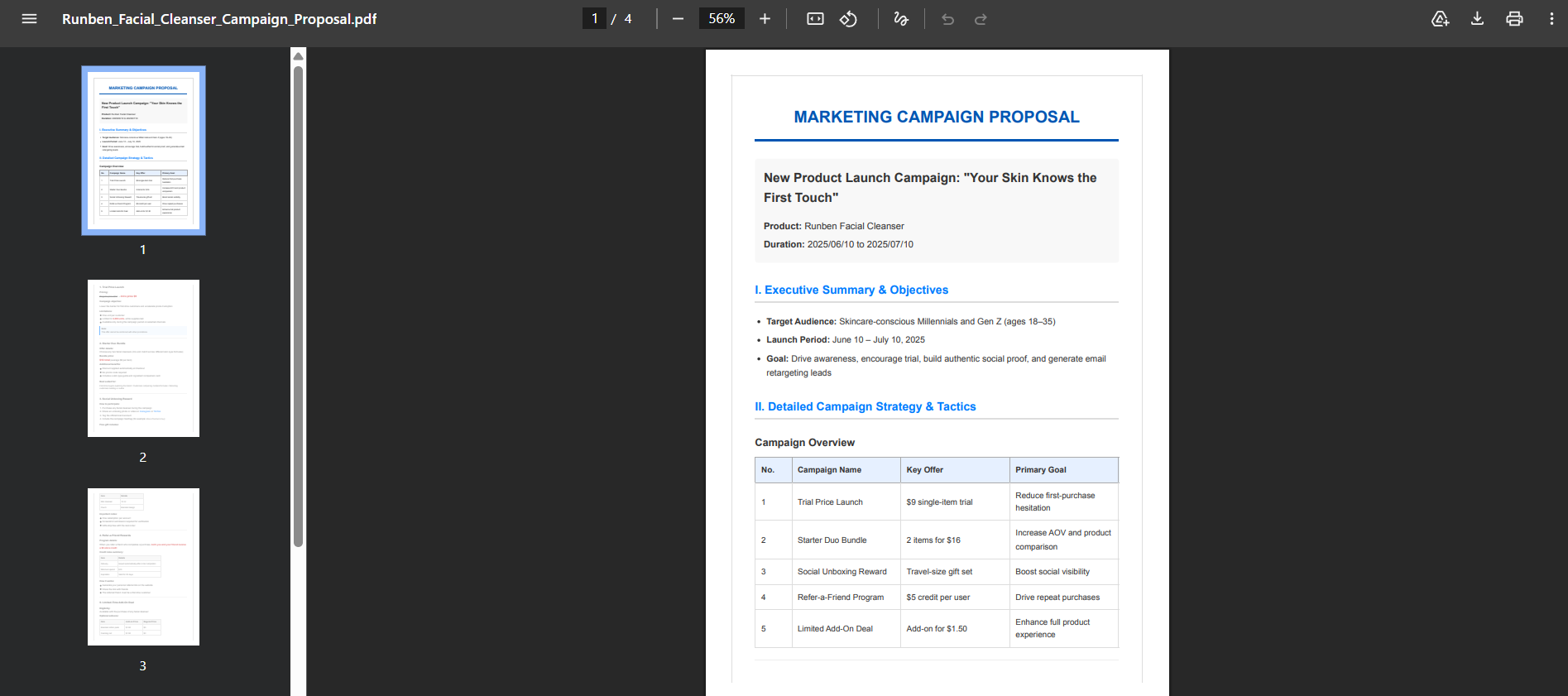
Alternatively, you can have Ragic AI generate a PDF related to the data and upload it to this dialog box, or send it to your user email address.
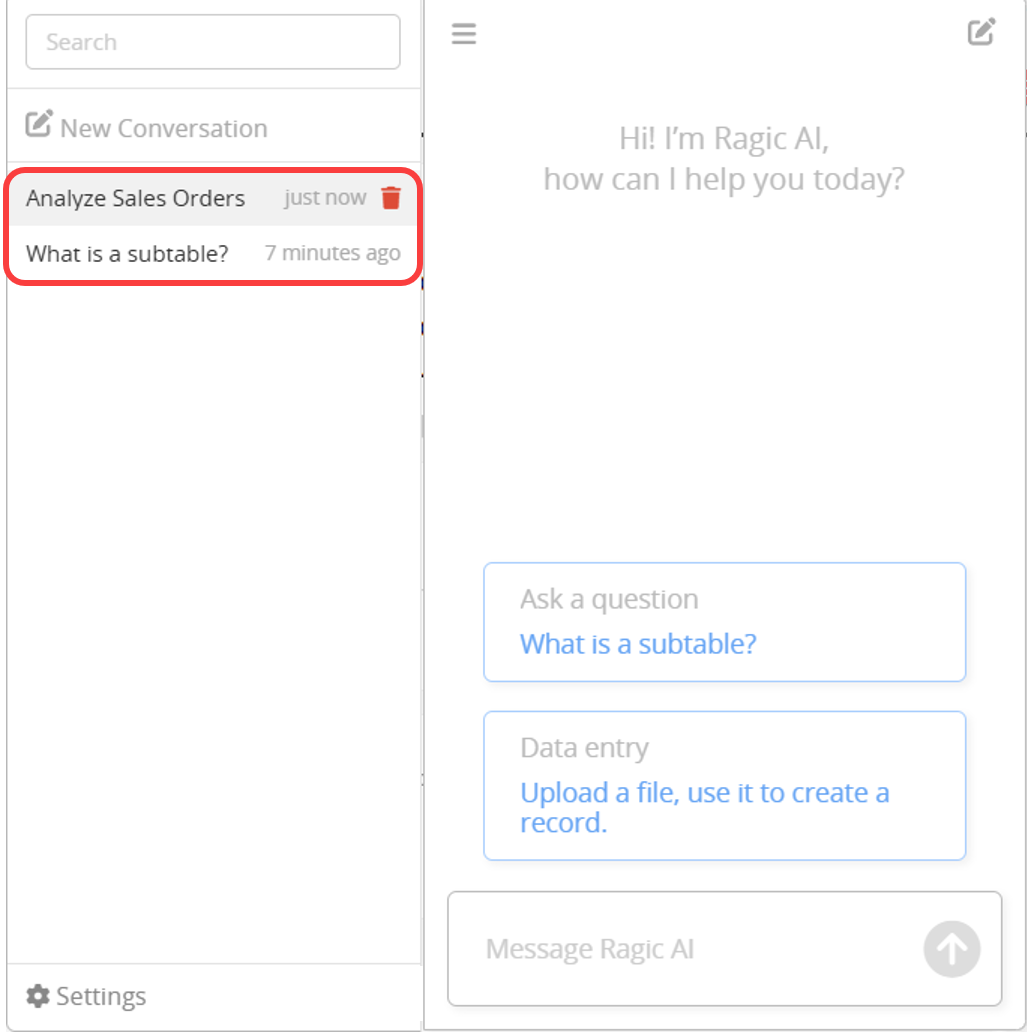
Click the top left menu to view your conversation history. Each conversation is automatically named based on its content, and you can delete it using the trash icon on the right.
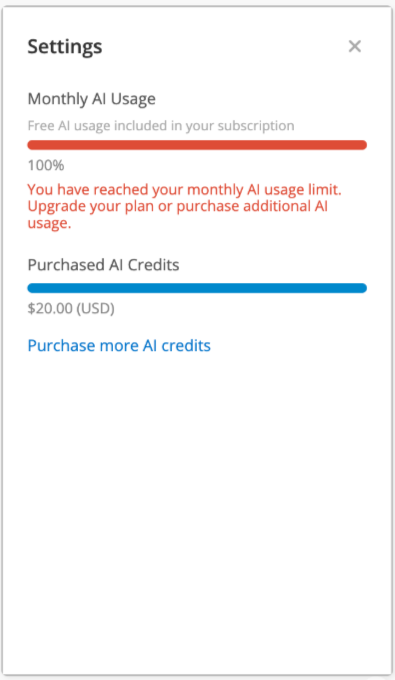
When using Ragic AI features, AI Usage is automatically consumed based on the workload and complexity of each task
In the Ragic AI window, open the menu in the upper left corner and click Settings to view the current AI Usage.
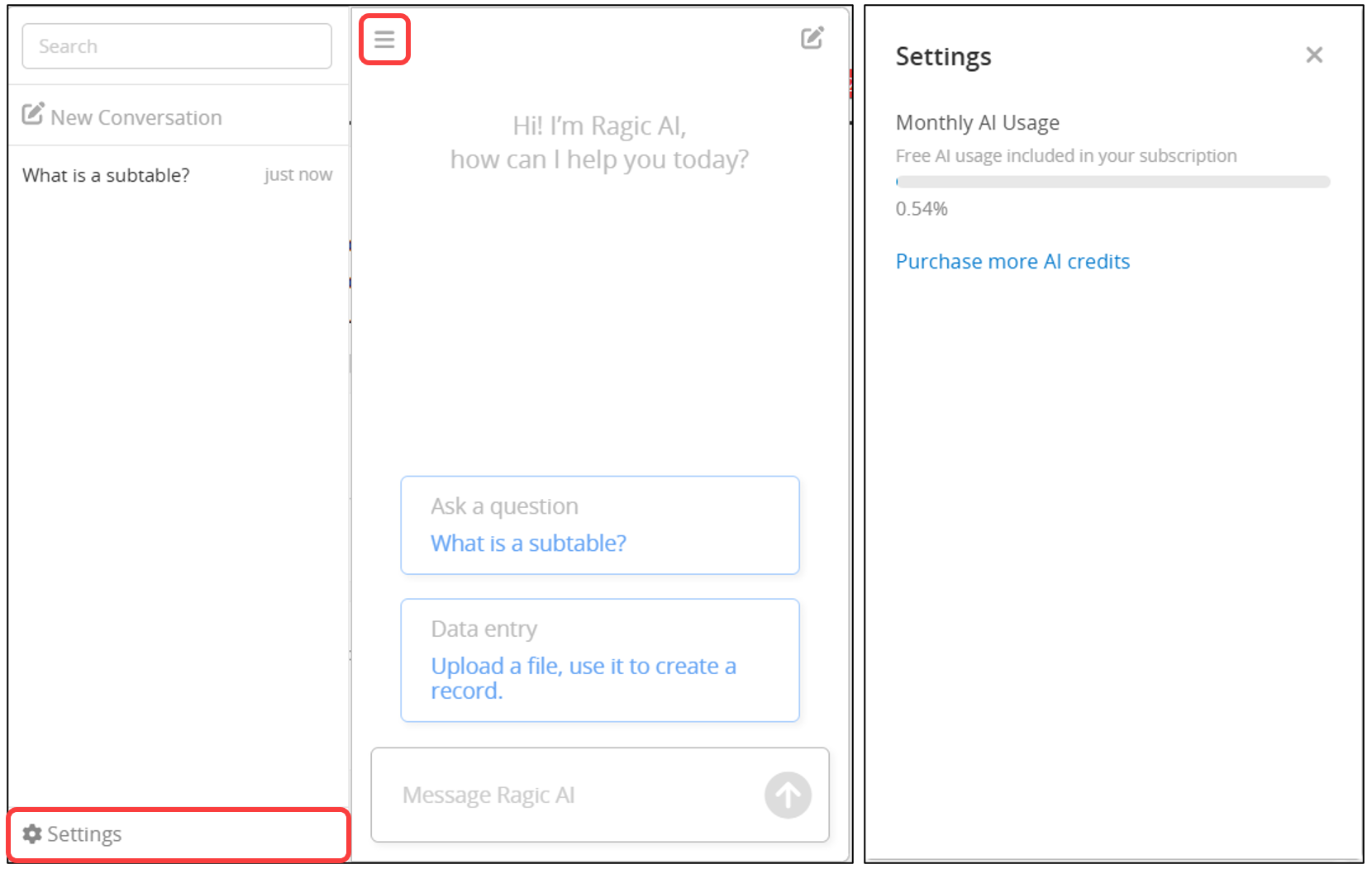
Once the usage is used up, you can ask the SYSAdmin to purchase extra usage to continue using AI features, or wait until the next month for the free usage to reset.
 Thank you for your valuable feedback!
