 Learning center
Learning center
Learning center
Ragic supports barcode generation, which converts a specified value into a barcode image after you select a barcode format. This is mainly done through Barcode fields. If you have added a Barcode field or used related features but the barcode image does not appear as expected, check the following settings and explanations.
First, it is important to clarify that a Ragic Barcode field is used to display the value entered in the field as a barcode image. "It does not automatically assign or generate a barcode value for a record".
Therefore, if you create a Barcode field but do not enter any value, the field will remain blank, just like any other field with no data. This is similar to an Image Upload field, which stays empty until an image is uploaded.
If you are unsure whether the field contains a value, you can check the Entry Information. If the record was created manually, has no modification history, and the field appears blank, then it has no value. You can also right-click to copy the field value and paste it into a plain text editor. If nothing appears, the field is indeed empty.
To generate a barcode, you must either manually enter a value in the Barcode field or create another field to generate the value automatically. For example, you can use an Auto Generate field to generate a code, then apply a Formula in the Barcode field to retrieve that value.
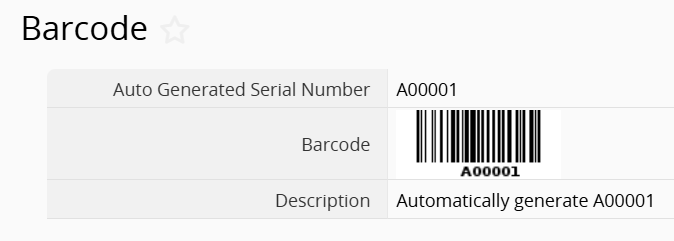
In the example above, the "Auto Generated Serial Number" field (A1) produces a value such as A00001. The Barcode field uses the formula: A1, so when the formula is triggered, the "Barcode" field takes the same value and displays it in barcode format.
Note: Each barcode type has its own encoding rules and must follow them to display correctly. For example, Code128 supports only ASCII characters. If the encoded value contains non ASCII characters, the barcode will not display properly.
If the formula has been configured but the barcode image does not appear, and you have confirmed that the barcode meets the required format, make sure that Formula Recalculation has been executed in Design Mode so that the formula is applied to existing records.
The Label Maker report in Ragic is used to present existing sheet data in a label layout. Because sheets show one record per Form Page and Listing Pages show one record per row, it is not easy to condense a record into a compact "label" using the default layout. The Label Maker solves this by converting existing records into individual labels.
Like the Barcode field, this feature only formats and displays data that already exists in the database. It does not automatically generate codes, field values, or barcode images.
Therefore, to create barcode labels, you must first have a Barcode field with a valid value and confirm that the barcode image is displayed correctly on the Form Page. You can then use the Label Maker to generate barcode labels. Please ensure all related settings are properly configured before generating labels.
 Thank you for your valuable feedback!
